Dictation & Speech Tools

iPad Dictation

Any time the keyboard is open to input text there is a dictation icon next to the spacebar:

IMG_0137

Simply tap this to start dictation.

iPad Text to Speech

There are a couple of options you will need to turn on to get test to speech to work on your iPad. Open the Settings app, tap General, Accessibility and then Speech. Turn on the first two options:

IMG_0140

Now when you are in an app you can select any text (by tapping and holding, and dragging the cursors around the text) and tap Speak:

IMG_0138

You can now also swipe down with two fingers from the top of the screen and the iPad will start reading aloud text, beginning at the top of the page. Some controls will also appear that allow you to speedup, slowdown and move the speaking position around the page:

IMG_0139

MacBook Dictation

This was written for older versions of macOS. For Mojave onwards there is a good guide here.

On a MacBook, to turn on dictation you need to go to System Preferences and click on the Dictation & Text to Speech icon:

Screen_Shot_2015-02-24_at_1_12_59_PM

From the dictation tab you can then turn dictation on (you can also enable enhanced dictation if you think you will be using this tool a lot with ESL students to improve the accuracy):

Screen_Shot_2015-02-24_at_1_13_21_PM

You can now use the keyboard shortcut to use dictation in any app, just press the function (fn) key twice.

MacBook Text to Speech

To turn on text to speech you need to be in the same section of System Preferences as above, then click the Text to Speech tab at the top:

Screen_Shot_2015-02-24_at_1_16_39_PM

Now select the option that says Speak selected text when the key is pressed. The default key to get this to work in an app is Option+Esc. Any text you have selected when you press that key combination will be spoken out-loud by the computer.

Posted in Professional Development | Comments Off on Dictation & Speech Tools

Explain Everything

Explain Everything is a design, screencasting, and interactive whiteboard app that lets you annotate, animate, narrate, import, and export all kinds of different files and media. There are many types of projects you can do with Explain Everything but we are going to look at four main uses in this post.

1. Mobile Interactive Whiteboard

Just like Jot! and Notability, Explain Everything can be used a mobile interactive whiteboard when used in conjunction with Air Server. In a similar way to those apps Explain Everything offers a blank canvas on which you can use pen tools, shapes text boxes and insert pictures, documents and other objects.

First you just need to create a new project:

IMG_0214

And then select the template design you would like – these will just give you different color backgrounds and different default color options.

You can now use the different tools on the left hand side to start annotating, drawing, etc. on the canvas which can then projected up on the board:

IMG_0215

Double tap on a tool (or color pallet in the bottom left hand corner) to see more options. You can use the hand tool to select objects and move them around the canvas, including the pinch to zoom and rotate gestures.

2. Create Multipage Documents/Presentations

Because Explain Everything allows you to add multiple pages/slides in a project (combined with the powerful drawing tools) a lot of schools use the app to create a multitude of different document types. This could just be a simple presentation document which is then presented directly through the app, or more document-based projects like a science reports, newspaper, ebook or comic book which is then exported and shared as a PDF at the end of the project.

To add multiple pages to your project tap the plus button on the bottom bar, and tap the Slide x of x drop down to browse your slides:

IMG_0216

Once you are finished with the project to export it as a PDF to your Google Drive account, first tap the share icon:

Screen Shot 2015-11-24 at 08.49.50

Then tap GDrive (you will need to login to your Google Apps account the first time you do this), make sure PDF file is selected, and tap Export.

IMG_0218

Once uploaded you can then share your document using the Google Drive app on the iPad or in the browser on your MacBook.

3. Annotating Existing Documents and Presentations

In a similar way to Notability, you can also use Explain Everything to import existing resources like PDF documents or PowerPoint presentations from your Google Drive. You can then annotate over the top of these – either to project on the board or create new content with (or to share with) students.

Tap the plus button to use the Insert an object tool, and tap Photo, Video, or File:

IMG_0220

Select GDrive and find the file you want to import, select it and tap Choose. Note that if your document has more than one page Explain Everything will create slides for each page.

One great feature with Explain Everything is that it allows you to select, move and zoom (using the normal tap, pinch to zoom and rotate gestures) the individual pages of a documents as a separate object. This allows you to position the page how you would like and then add any additional annotations on top. Here is an imported PDF file for example:

IMG_0221

4. Creating Video Screencasts

The final feature of Explain Everything is that it allows you to record your actions when creating the above projects and then export those actions as a video. This is a very quick and easy way to create flipped classroom videos you can then share with your students, or for your students to create explanation and reflection videos as classroom projects.

To record as you create a project just tap the record button in the bottom bar (tap pause to stop the recording, and rewind to start again):

Screen_Shot_2015-11-24_at_08_54_17

During recording Explain Everything will also record any sounds from the in-built microphone so you can easily record your voice to add narration to the project. Note that you can record actions on multiple slides which will be added together in the final video.

There are also laser pointer-style tools included that you can use to highlight sections of a slide and their motion will also be recorded (double tap the target icon to see the different pointers):

IMG_0222

Here is an example video of what can be achieved very quickly with this app:

And here are a few more examples made by students here at Hebron for Math homework:

Once you have recorded your video, as before, tap the share icon to export it. Just make sure Video is selected, tap GDrive and then Export:

IMG_0223

Once uploaded you can then share your video using the Google Drive app on the iPad or in the browser on your MacBook.

For more help and ideas with Explain Everything we recommend these 3 books, all free from the iBookstore:

https://itunes.apple.com/us/book/explain-everything-formative/id844630744?mt=11
https://itunes.apple.com/us/book/explain-everything/id591601596?mt=11
https://itunes.apple.com/us/book/explain-everything-lesson/id939801330?mt=11

Posted in Professional Development | Comments Off on Explain Everything

Live Streaming School Events

One project we have been working on in the Technology department this year is to start getting more of our events live streamed. This is so parents unable to make the journey to school can still watch live. For the past two years we have streamed our winter music concert using Ustream, and through doing this have learned a lot about audio quality, camera placement and bandwidth requirements.

However, we knew we wanted more options that Ustream could offer, so we have moved over to The Cube (formally called High School Cube). This is a newer service that includes a lot more social features especially for sporting events, for which you can tag other teams, follow other school’s cubes, include a live scoreboard, etc.

Recently we have been using this site to live stream our home hockey games, complete with play-by-play and color commentary, follow-the-puck camera work and pre-game coaching staff interviews. Below you can see the live stream setup above the rink and some of the ways we have been getting to word out to the Hebron community. We were even featured on The Cube’s Twitter feed.

Posted in Office Updates | Comments Off on Live Streaming School Events

iMovie on the iPad

iMovie on the iPad lets you quickly combine clips and edit, produce and export movies directly on the iPad. Just like the full version of iMovie on your MacBook you can add titles, transitions, effects and voice over to create a fully featured film. It’s also great for student projects and can create some really professional looking films, such as these opening day iMovie trailers.

When you first load iMovie, tap the Projects tab and then the + icon to create a new project:

IMG_0092

Then select Movie from the next screen (the Trailer option lets you build a movie-style trailer from a text-based template):

IMG_0093

Next you need to select a template (different templates have different transition and title effects – you can click the play button to sample each). One you have chosen one, tap Create:

IMG_0094

(Note that newer versions of iMovie will not have this template screen. It lets you select all the content you want in the movie and then tap the blue Create Movie in the bottom right.)

You can now start to create your timeline (the timeline is where you build up the finished project by putting videos and images in the order you want them to play) by adding movies and images from your camera roll.

One thing to note is that iMovie will look different depending on what orientation you hold your iPad. In portrait this movie and picture browser will be hidden – we recommend you hold the iPad in landscape when using iMovie so everything is visible all the time.

You can browse your existing videos and pictures in the top right hand corner:

IMG_0095

Once you have selected a video or picture to add to your timeline, tap to select it and then tap the down arrow icon (or plus icon in newer versions) to drop it into your timeline:

IMG_0096

Once you have added more than one item to your timeline you can then tap, hold and drag to rearrange the clips. Or to trim a single clip tap just once to select a clip in the timeline – you can use the yellow sliders to trim the clip and additional clip options will show up in the bottom left hand corner of the screen:

IMG_0097

These different options let you split (this is useful if you want to trim something from the middle of a clip) or duplicate the clip, change the speed of the clip, adjust the audio volume, add text titles or add a filter effect (such as make the clip black and white).

Here is what the add title option looks like (you select a title style, choose the position of the text in the clip and then double tap in the view window to enter the actual text):

IMG_0098

Notice that when you have added more than one clip to your timeline iMovie automatically enters a transition effect between the clips. To change the transition effect you just need to tap on the transition icon and the options will appear at the bottom of the window:

IMG_0099

To add voice over to your clip using the in-built microphone, first make sure no clip is selected in the timeline and then tap the microphone icon in the bottom right hand corner. Simply tap Record to start recording:

IMG_0100

The audio will be inserted wherever the playhead (the white line) in currently positioned. Once you have finished recording you can tap and hold to move the audio around. There is also the audio section in the browser where you will find some music tracks and sound effects to add to your movie:

IMG_0095

When you have finished editing your movie you can then export and share the finished project. Tap on the arrow in the top left hand corner to go back to the project screen:

IMG_00911

Tap on the name of the project to change it:

IMG_0101

Then tap on the share icon to export your movie. There are a number of sharing options but the one we recommend is Google Drive (you could also upload it directly to YouTube or send it through email). After tapping the share icon you just need to tap Open in App and then select Google Drive:

IMG_0102

Your movie will then be processed and uploaded to your Google Drive ready for sharing like any other Google Drive file.

Posted in Professional Development | Comments Off on iMovie on the iPad

Using Gmail as the Default Mail App

To make it so that when you click on an email link a new compose message window opens up in Gmail, you need to complete a couple of steps, depending on the browser you are using.

1. Chrome

If you use Chrome as your default browser all you need to do it log in to Gmail and look in the top right of the address bar for a double diamond symbol. Click that, select Allow and then click Done:

Screen_Shot_2015-02-11_at_9_21_57_AM

2. Safari

If you use Safari you will need to install this browser extension. Once downloaded, double-click on the file in your Downloads folder, click Install and then select Gmail from the options:

Screen_Shot_2015-02-11_at_9_41_05_AM

You then just need to quit Safari completely and reload it to get the extension to work.

3. Firefox

Click on the “hamburger” button in the top right and then click Preferences:

Screen_Shot_2015-02-11_at_9_11_50_AM

Next, go to the Applications tab, search for mailto and then change the dropdown action to Use Gmail:

Screen_Shot_2015-02-11_at_9_13_55_AM

Then just close the Preferences window.

Posted in Professional Development | Comments Off on Using Gmail as the Default Mail App

iWork (Pages, Keynote, Numbers) on the iPad

The iWork suite is Apple’s version of MS Office, allowing you to create documents with advanced layouts in Pages, professional presentations in Keynote and spreadsheets with calculations and charts in Numbers, right on the iPad.

Here is the Pages interface once you have created a new document, with a few of the more common tools labelled:

IMG_0084

You simply double-tap on an object, such as the text in the above example, to edit it. To change the options of an object, such as the font size, once the object is selected just tap the paint brush icon (different options will appear depending on the type of object selected):

S2010_ChangeFont1

Tap on the plus icon (+) to insert tables, charts, text boxes, shapes and images onto your document:

IMG_0085

Here is the Keynote interface, again with a few key options highlights:

IMG_0088

The interface is very similar to Pages, except that your slides can be seen in the left hand column. To add a new slide tap the plus icon (+) in the bottom left hand corner and the play button in the upper right puts the document in present mode.

And finally, here is the Numbers interface:

IMG_0089

Again, there are similar options to Keynote and Pages. To enter data into a cell you need to double tap, and this pop-up keyboard will appear:

IMG_0090

Use 42 to enter text, the clock symbol to enter a date, the T to enter text and the equals (=) to create a formula or function.

To share a finished document in any of the apps just tap on the share icon (share_button):

IMG_0086

Use the Send a copy option if you want to email it directly or Open in Another App to save it to something like Google Drive. Either selection lets you choose a file type first, from Pages to PDF, Word or ePub:

IMG_0087

Posted in Professional Development | Comments Off on iWork (Pages, Keynote, Numbers) on the iPad

Google Apps on the iPad

Google has a range of different apps available for the iPad. During this week’s tech training session we took a look at the following apps (all are available in the Self Service on your iPad and it is recommended that you install all five):

1. Gmail

This is a native app for viewing, replying, organizing your Hebron Academy email. It offers a lot more functionality than the built-in iPad email app including better support for Gmail-style labels and threaded conversations. The interface is pretty self-explanatory with layouts and graphics similar to the desktop version:

IMG_0077

2. Google Drive

Google Drive at its most basic is an excellent viewer for all the files stored already in your account. Again, the interface looks very familiar to the desktop version with a few subtle differences:

IMG_0078

Click on the button next to a file to get access to the rest of these different options you might need:

IMG_0083

But Google Drive is also important for saving and sharing files from other apps. As you can see in this post you can quickly upload photos and videos to Google Drive but a lot of apps that have the share icon share_button let you save and upload their files directly to Google Drive (or like Notability connect directly to your existing Google Drive files and folders).

3. Google Docs, Slides, Sheets

These are slightly cut-down versions of the full desktop browser apps. The initial interface when you open the app looks very similar to Google Drive, but you can only see the files that correspond to the app (i.e. you can’t see Sheets files in the Docs app):

IMG_0079

This can be confusing so we recommend you always start in the Google Drive app to organize and create documents.

When you create or open a document in any of the apps you will see a set of cut-down viewing and editing options. Here is the Google Docs app with a subset of the different tools when you are viewing:

IMG_0080

And when you tap inside the document to edit it these options will then appear:

IMG_0082

You can also view and edit files (depending on what permission you have been given) that have been shared with you. This works exactly as with your own files that you have created.

Posted in Professional Development | Comments Off on Google Apps on the iPad

Grade 6 & 7 Science – 3D Biomes in Sketchup

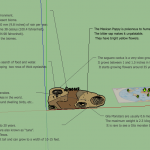
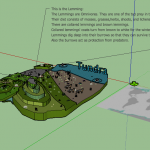
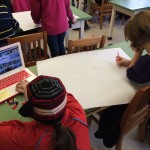
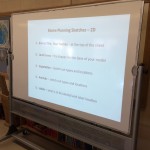
In grade 6 & 7 Science a recent project was to create biomes in 3D using SketchUp. The class was split into groups of two and three and each randomly allocated a different biome, from desert to tundra. After several lessons of directed research finding out about the climate, animals and plants, the groups began by sketching out in 2D a plan of what they wanted their 3D models to look like. These sketches had to include:

  1. Biome Title – at the top of the sheet
  2. Land forms – the shapes for the base of the model
  3. Vegetation – sketch out types and locations
  4. Animals – sketch out types and locations
  5. Labels – what is going be labeled and the label location

Next, using the various drawing, shape, texture, model and camera tools within Sketchup the groups had to create their models in 3D following the same steps, with the addition of a world map showing the various locations of their biome. Once completed each group then presented their model and biome research to the rest of the class, with group members switching tasks between talking and operating the camera within the model.

Here is a video tour of their completed models (minus the information labels and location maps for clarity):


And here is a gallery of the class working at different stages in the project as well as screenshots of some of the complete models:

Posted in Tech in the Classroom | Comments Off on Grade 6 & 7 Science – 3D Biomes in Sketchup

iPad Photo, Video & Audio Basics

Another great use of the iPad is as a camera, whether it’s as a mobile document camera (just open the Camera app when the iPad is connected to your MacBook via AirSever), or to take, export, store and share photographs and videos of student performances, presentations or class work. You could also use it to record your own teaching for your portfolio.

There are two main apps that you will be using to take photo and video, as well as look through and edit photos and video you have already taken. These are Camera and Photos:

IMG_0067

Once loaded the Camera app looks like this and has the following options:

IMG_0068

The Photos app let’s you browse all the photos and videos you have already take with your iPad. Tap on a thumbnail to view a file fullscreen. For photos you will have the following options in the top right hand corner (you can also swipe left and right to scroll through your images one by one):

Screen Shot 2015-12-01 at 10.22.25

If you tap on the edit button these are the in-built image editing options available, including auto-enhance, crop and filters:

Screen Shot 2015-12-01 at 10.23.44

For further photo editing options, including more filter options and options such as adding pictures frames, check out the Snapseed app from Google.

If you have a video open you will not get the same editing options – all you will see is a film-strip at the top which shows an overview of the video:

IMG_0074

Tapping and holding in the film-strip at the start or end of the video and then dragging to the left and right lets you use the trim tool. The part of the video surrounded by the yellow box is the section that will be kept when you tap Trim. This lets you quickly delete any unwanted sections from the start or end of your video (for example when you approach the iPad to stop the filming). If you need more advanced video editing options the iMovie app can be used.

Once you have taken pictures or videos you would like to save or share with your students or colleagues, there are a couple of options to choose from. If you only have photographs or a small video the easiest app to use is Google Drive. From the app you just need to tap the red + button and chose Upload, and then tap Photos or Videos. Any files you upload will then be stored in your Google Drive and you can download or share them directly from the app or from the browser on your MacBook.

If you have recorded a very large video file you may need to plug your iPad into your MacBook with the USB cable and use an app on the MacBook called Image Capture to import your video. This app will detect the iPad and show you all the images and video you have taken. Select the video file you want to import, choose the location to save it to and then click Import:

Screen_Shot_2015-01-14_at_10_09_18_AM

The video will now be saved as file on your MacBook and you can view it, edit it or share it as you would any other file.

For audio only recordings we recommend the AudioCopy app, which is a fast and efficient way to record and edit student audio work (such as interviews, role-plays or even just language practice). Once you open the app tap on Make New Recording and then tap the record button to start recording. And tap it again to stop.

All your recordings will be saved under the My Recordings tab, and there are a number of things you can do with each track:

Screen Shot 2015-12-01 at 10.39.27

Use Open With to upload directly to Google Drive, or the GarageBand option copies the track which you can then paste into GarageBand. If you have a SoundCloud account you can also upload directly to their audio hosting service.

You can also edit your track directly in AudioCopy. Tap on the green Edit button and you can then move the sliders around to trim the audio. Once the sliders are in place just tap on the blue pencil to get these editing options also:

IMG_0234

Posted in Professional Development | Comments Off on iPad Photo, Video & Audio Basics

Jot! & Notability iPad Apps

Jot! and Notability are two great apps available to all faculty that can turn your iPad, when used with Air Server, into a mobile interactive white board for your classroom. Hand draw sketches, words, diagrams and graphs, import pictures or take a photograph of a page in a textbook or novel and hand the iPad to a student to solve, annotate or add to – with everything being projected on the board.

Of the two apps, Jot! is the most basic providing a simple scratch-pad with a few different pen, colour, background and import options. In the screenshot below you can see the different gestures and tools available and the cut-down interface on the right hand side, including simple pen colour and sizing options:

IMG_0050

Use pinch to zoom in and out, and two figures to scroll. Tap the camera icon to change the background, import an image or take a picture (which can then be annotated over):

IMG_0051Notability offers similar options to these but is based more around creating and organizing notes. When you first open the app you will see the following screen, with your notes on the right hand side and any subject folders you make on the left hand side:

IMG_0052

Tap the + icon in the top left to create new subjects to organize and store your notes in:

IMG_0054

Any notes you have already created can be dragged and dropped between subjects.

To create a new note tap the pen and paper icon in the top right hand corner. As with Jot! use two fingers to scroll and pinch to zoom in and out when you are viewing a note. The different tools can be seen across the top with text box, pen, highlight, erase and cut options:

IMG_0055

Tap on a tool twice to see any additional options. You can also tap on the + icon to insert other objects like photos, web clips (screenshots of a webpage) and sticky notes:

IMG_0056

Once these have been added you can annotate over the top of them, you just need to tap somewhere else on the screen to deselect them.

In addition to building up notes with these tools, Notability also offers powerful importing tools and can link to a number of cloud storage services. On the opening screen tap the import button and then tap Google Drive to link your school Google Drive account:

IMG_0057

You just need to login and tap Accept. You can now import all kinds of documents including PDFs, images and Microsoft Office files from Google Drive. Notability will turn them into notes which you can then view and annotate over the top of.

Once you have finished annotating you can also export the file back to Google Drive, just tap the export button and tap Google Drive again:

IMG_0058

One thing to note with exporting is that if you export the same file back to the same location in Google Drive it will overwrite the original. So if you want to save the originals and your students’ annotations you will need to create some kind of folder structure to save the separate files.

Posted in Professional Development | Comments Off on Jot! & Notability iPad Apps