Conceptual Physics – 3D Car Race Day

For the final part of the Conceptual Physics project based around car design, students had to prep their 3D printed cars for the test ramp and were then given three chances to record their fastest speed down the ramp (recorded with a radar sensor) and longest distance travelled off the ramp. Any car that did not make it down the ramp was disqualified for that turn.

We then finished off the project by running racing heats side-by-side to see which of the cars in each class was the fastest to a specified finish line at the end of the ramp. We even raced the fastest design against the best car from last years project.

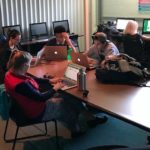
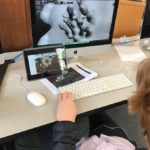
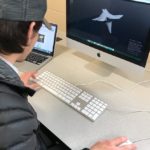
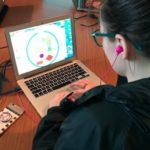
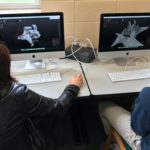
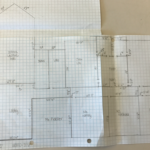
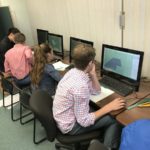
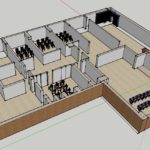
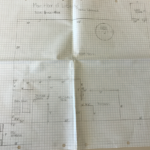
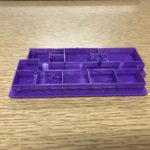
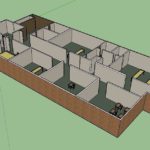
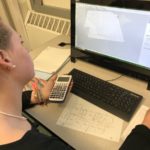
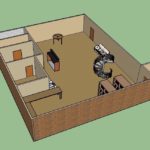
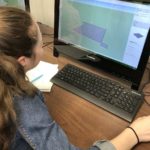
Here are a few shots from the race prep and race day classes and a close-up of some of the finished designs the students created using the 3D printer and Tinkercad:

And finally, a YouTube playlist of some of the different cars heading down the testing ramp is embedded below:

Posted in Tech in the Classroom | Comments Off on Conceptual Physics – 3D Car Race Day

US History – Freedom Trail Video Tours using Clips or iMovie

As in previous years US History students took a trip this trimester to Boston. They spent the day walking along the Freedom Trail and, in groups, documenting the tour by taking pictures and movies with their iPads. Once back in school they had to work in their groups to put together a professional video, edited with either iMovie or the Clips app, recreating their walking tour from the different footage and photographs they had taken.

Using either of these apps students had to go through several production steps to complete their films, including: collecting together clips and photographs on to one iPad; constructing their timeline – ordering/trimming clips & images together; adding titles – including an intro title and credits; removing any unwanted audio and recording any additional voice over; watching through the entire video to check for any editing errors; and finally saving, renaming and sharing their finished movie.

Here are a couple of examples of the completed tours, again made using photographs and video from the trip and either the Clips app or iMovie:

Posted in Tech in the Classroom | Comments Off on US History – Freedom Trail Video Tours using Clips or iMovie

Conceptual Physics – 3D Race Car Design

A project that Freshmen complete every year in their Conceptual Physics course is designing and creating cars that are raced down a ramp and measured for speed and distance travelled. Students design their cars completely using Tinkercad to create parts to be printed on the 3D printer.

The project started with an introduction to professional car design based around this video from BMW. We talked through the three main steps of: drawing and sketching their design ideas; prototyping using clay to create a 3D model; and then manufacture. We also spent some time discussing wheel design and how wheels could be attached to the main body of their cars.

We then worked through these same steps using the sketching tools in the Notability app (or pen and paper) to create 2D designs, professional-grade modeling clay to create their prototypes and finally Tinkercad to design their car parts for the 3D printer for manufacturing.

A selection of photos of the students working on their iPads and in the Library iMac lab, some of their car sketches, clay prototypes and a selection of the finished printed models can be seen below:

Posted in Tech in the Classroom | Comments Off on Conceptual Physics – 3D Race Car Design

Using the Clips App to Create Quick Classroom Videos

Clips is a new app for making fun videos to share with friends, family, and the world. With a few taps you can create and send a video message or tell a quick story with animated text, graphics and emoji, music, and more.

Sitting in-between the basic editing tools in the Camera app and the more advanced timeline-based features of iMovie, the new Clips app from Apple is quick and easy way for students and faculty to create and share movies made up of photos, videos, text, audio and music.

Note that you may need to update your iPad to the latest version of iOS to get the Clips app to install.

After you open the app you will have the option of either recording a new video, taking a new photo or using existing photos and video from your library:
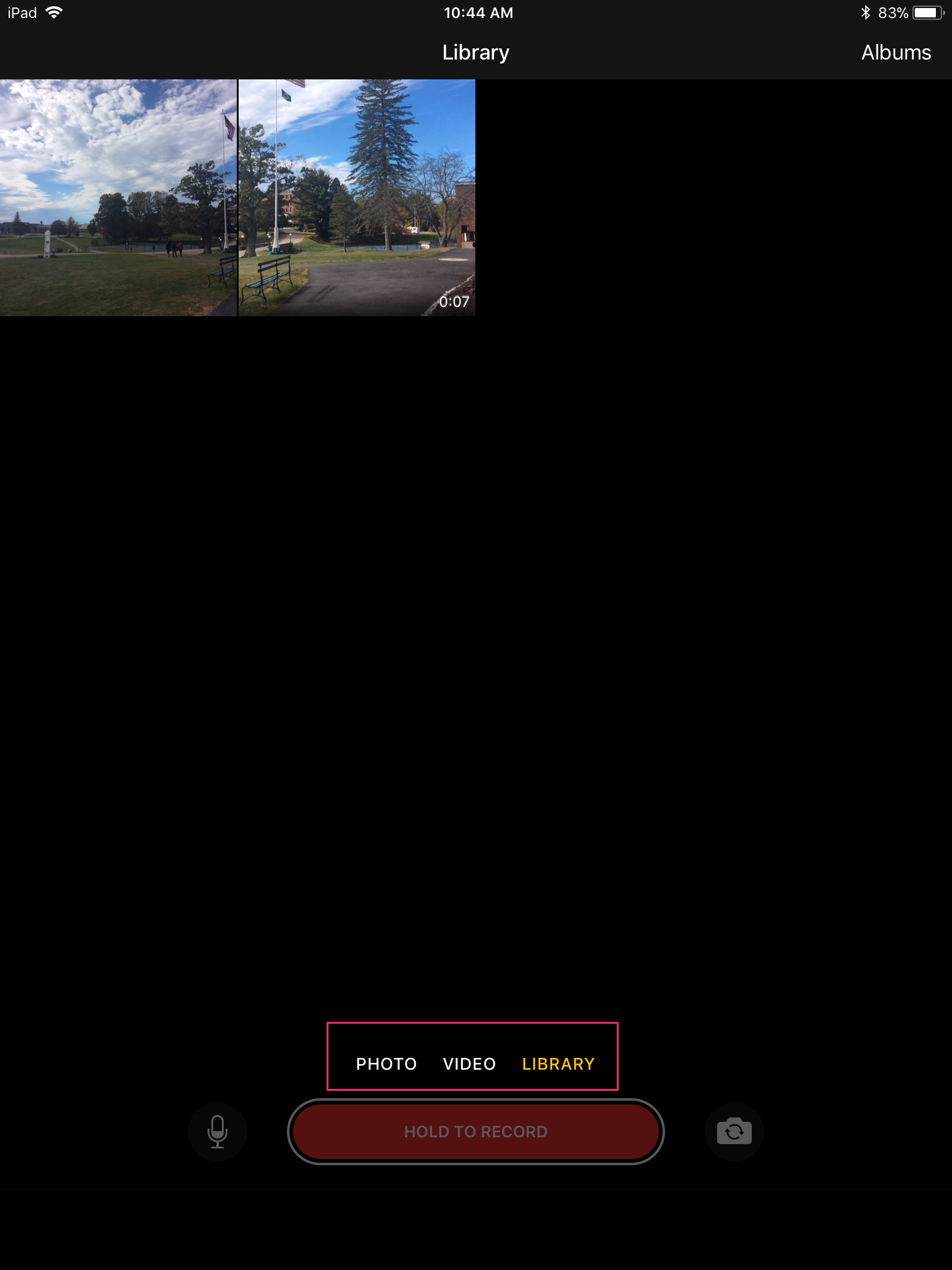
If you are going to be recording a new video or taking a new picture inside the app you have some options available to you before you start recording. Or if you are using an existing video or photo you will get these same options once you have selected it.

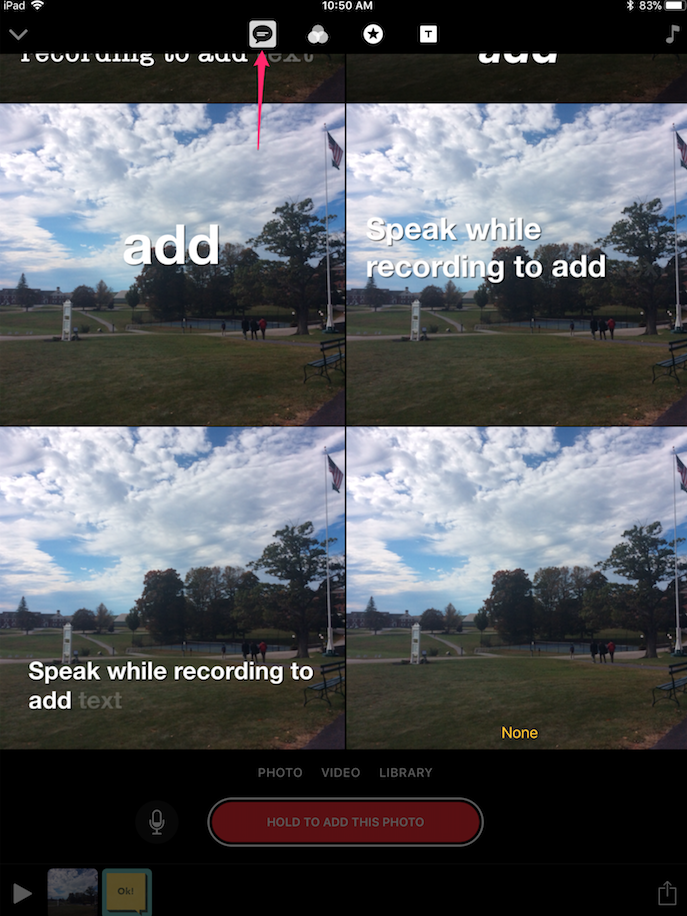
  1. Live titles. Select the text style you would like and then tap and hold the red button – as you speak text subtitles will be automatically added to your clip:
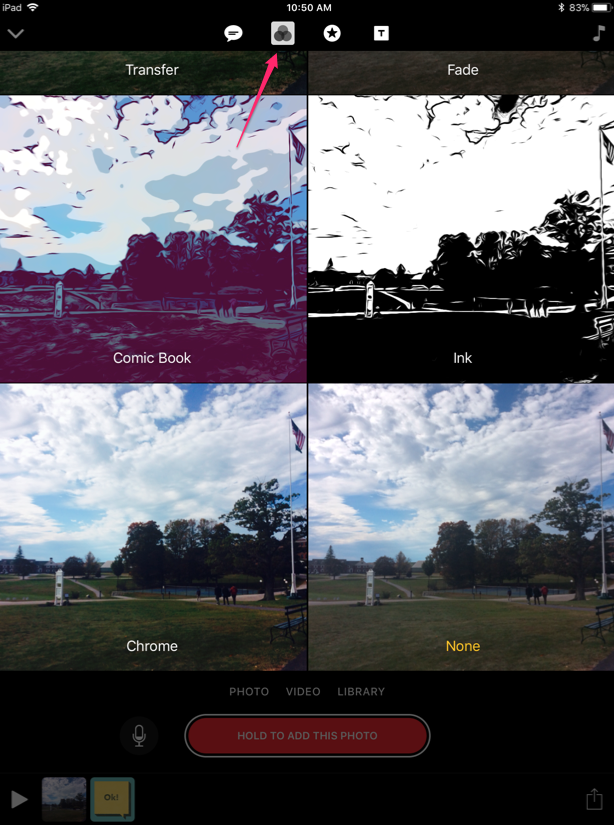
2. Filters, which add a color or graphical effect similar to what Instagram or Comic Life offer – and again tap and hold the red button for as long as you want to the clip to appear in your movie:
3. Stickers, which are transparent text objects that can be overlaid onto your clip (once selected the sticker text can be edited with a double-tap and then dragged to the desired position).
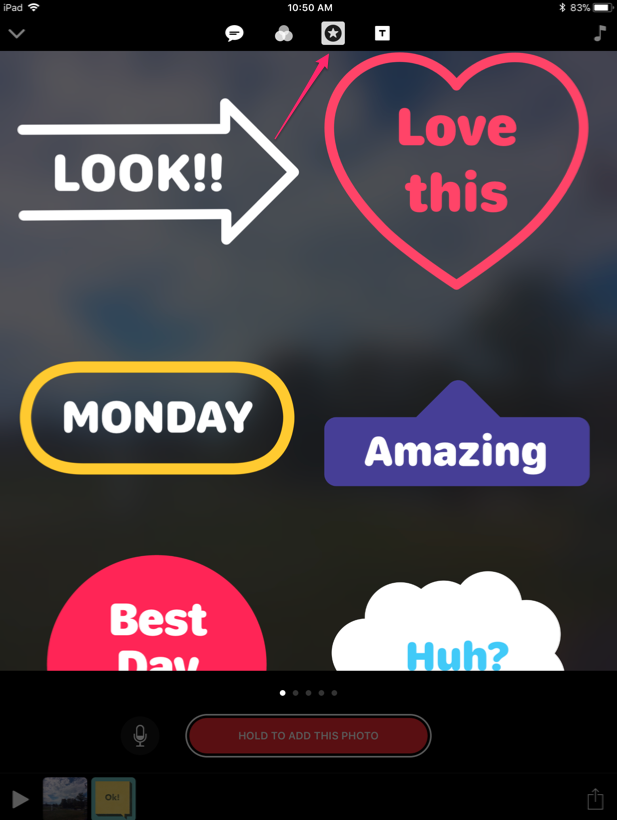
After you have added the sticker, tap and hold the red button to record your clip.

Once you have added a clip (either using the effects above or not) you will now see a timeline appear at the bottom of your screen. As you add more clips you can tap, hold and drag the clip bubbles to rearrange their order. You can also tap the play button to preview what you have created or tap individual clips to select them and either add further effects as above, delete them with the trash can icon or trim them with the scissors icon (you can swipe up to hide these options and get back access to the red record button).

Another object which you can add to your timeline are title slides. These are full screen templates that can be used as a more traditional title slide or for text instructions (again the text can be edited with a double-tap once a design has been selected):
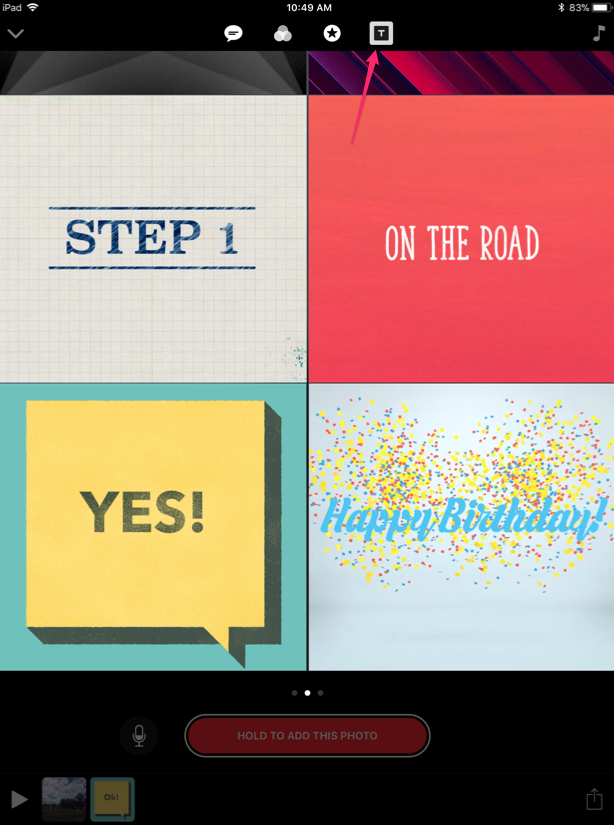
After you have chosen your title style and edited the text, tap and hold the red button to record your clip.

When you have finished recording all your clips and they are in the correct order in the timeline you can add background music. Apple has provided a library of music within the app for this – just tap on the music note icon in the top right hand corner of the screen:
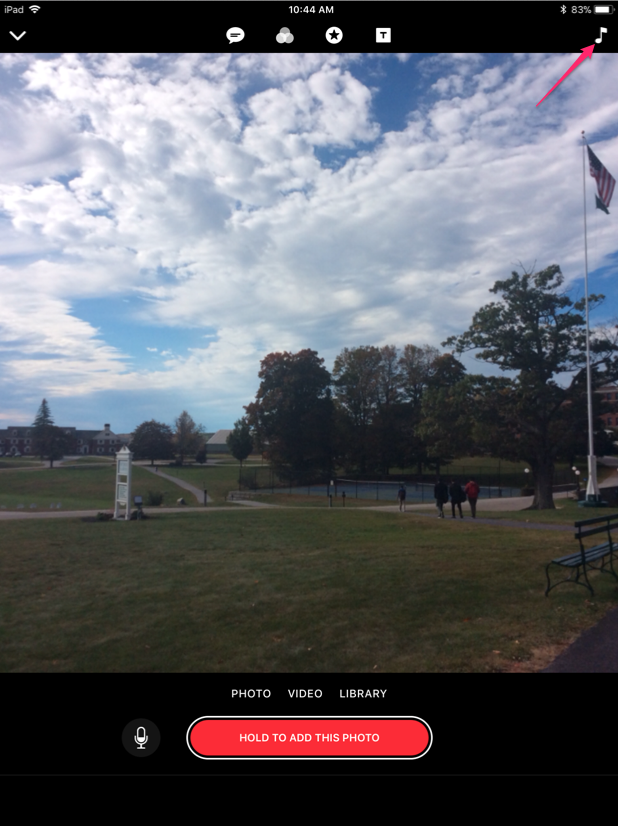
Tap Soundtracks and then tap on a title to listen to the track. It will download and once finished a blue tick will appear to the left of the title. If you would like to use this track in your project tap the blue back arrow in the top left hand corner of the screen.

You can now preview your entire project with this background music using the play button:
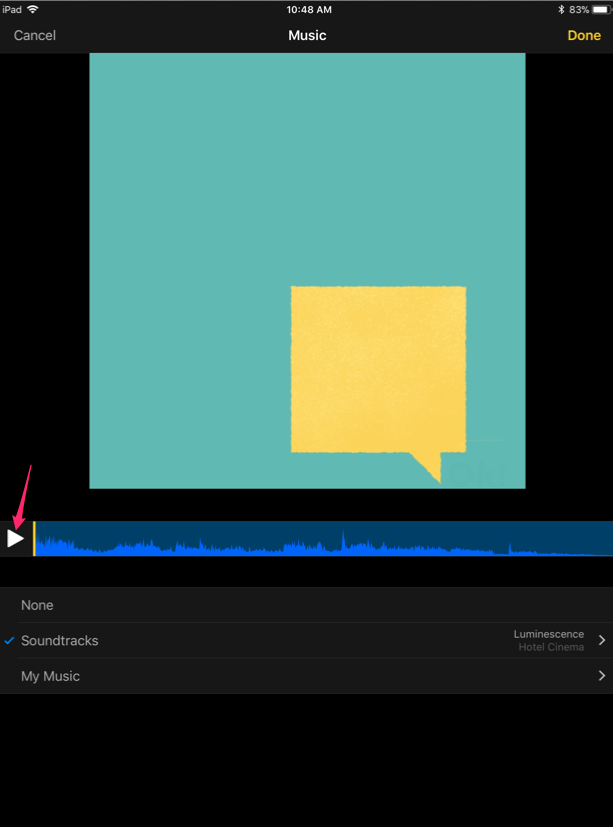
If you are happy with your selection tap Done to return you to the timeline view (or tap Soundtracks again to chose another). The app will automatically change the volume levels of the music so it won’t overpower any voiceover audio you have already recorded.

Finally to export your project, tap on the share icon in the bottom right hard corner of the screen:
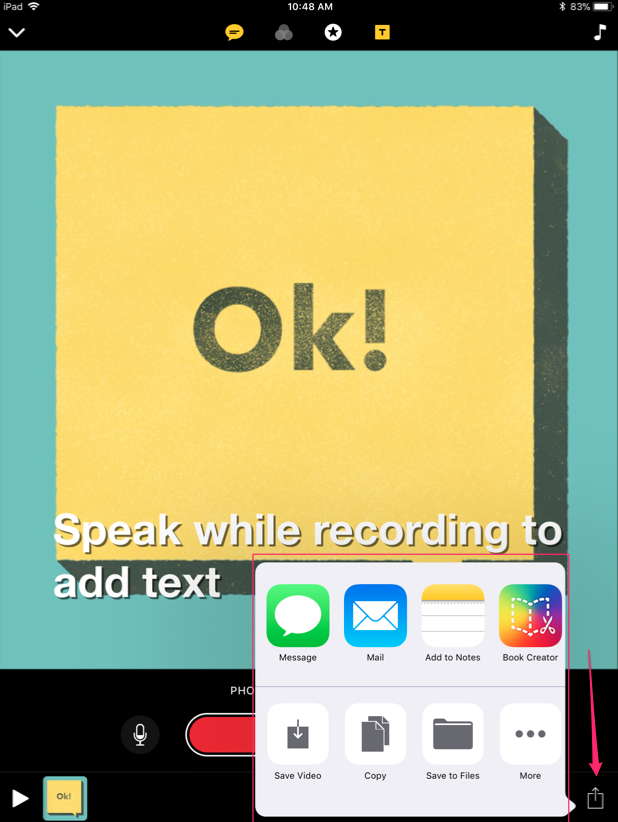
This will let you either save the video to your local photo library using the Save Video option or upload it to Google Drive for sharing.

Finally, if you want to start a new project or edit an existing one just look for the down arrow in the top left hand corner:
Tapping on this will drop down a new pane with all your existing projects and a + icon to start a new project.
Posted in Professional Development | Comments Off on Using the Clips App to Create Quick Classroom Videos

Using the Google Drive App

The Google Drive app allows you to save your Google Drive and Shared Drive (previously called Team Drives) files locally to your MacBook (as well as sync them between multiple computers). It works in a similar way to something like Dropbox by creating a simple folder on your computer and anything you put in there will be saved to the cloud and synced everywhere the app installed. In this way it is an excellent way to backup your files but also keep a local copy.

Note that online documents like Google Docs, Google Sheets, etc. will appear in the folder structure but are simply links and will open in the browser.

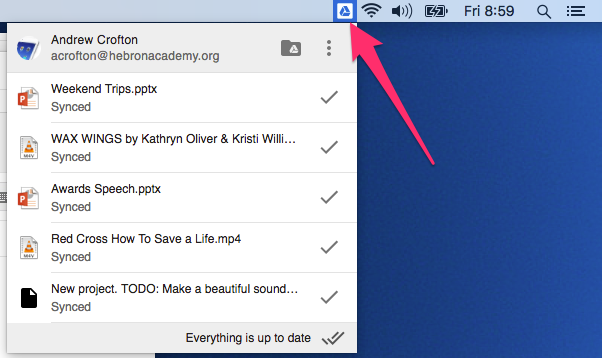
The app runs up in the menu bar which lets you see recent file activity:

The app will also add a new location in the Finder called Google Drive (and create a desktop shortcut to this) which will have folders for your personal My Drive files and any Shared Drives you are a member of:

As mentioned above, any files you copy or drag into these folders will be automatically saved to the cloud (and accessible from Google Drive in the browser) and synced everywhere the app installed.

One feature of the app is that it tries to dynamically choose which files and folders are saved locally to your computer, in order to save hard-drive space. If there are files you use all the time one option the app provides is to force files to be saved locally all the time. Just right-click on the file or folder and select Available offline:

Posted in Office Updates | Comments Off on Using the Google Drive App

Creating Shared (Team) Drives

Shared (Team) Drives are a new feature within Google Drive for storing and sharing files between groups of people. A Shared Drive allows you to create a shared space within Google Drive for just your department and make it so that all files or folders stored inside the Shared Drive are owned by the team, not just one person.

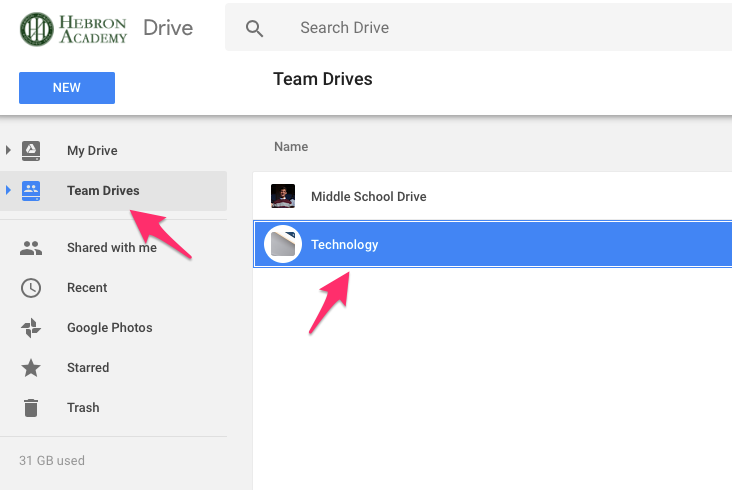
As an example we have a Shared Drive just for the Technology Department, which we can all see under the Shared Drive sidebar item in Google Drive:

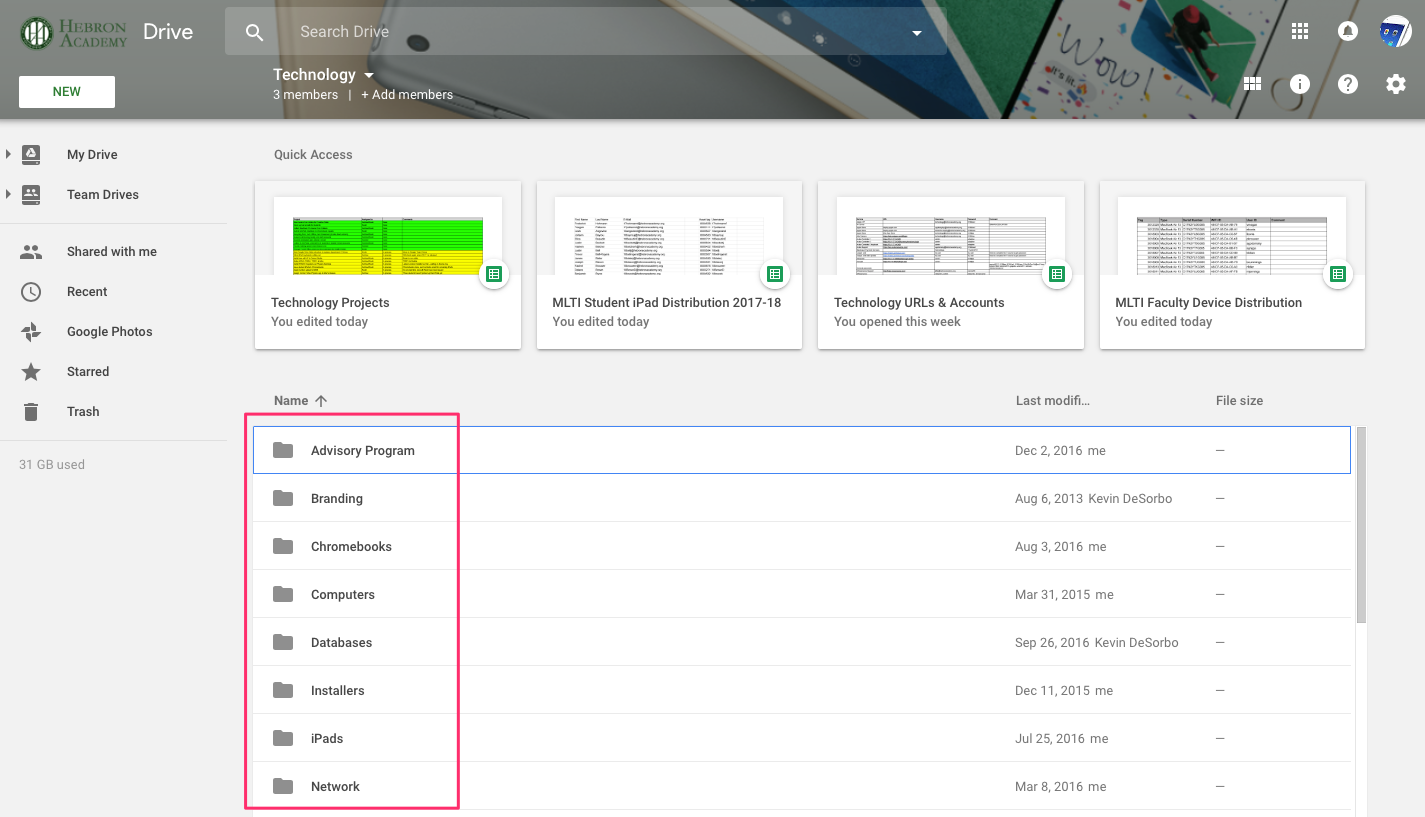
Within this we have a directory structure to store and organize all our different documents and files:

Using this system we have a central place for everything that we need share between each other, without having to share each individual folder or file. It is accessible online from any location with internet access, as well as all from all our different devices.

We strongly recommend you setup a Shared Drive for your department and use it as a central place to store teaching resources and all departmental admin files and folders.

This process is detailed step-by-step in this support document from Google and we are available if you need any further help.

One thing to note with Shared Drives is that you can share individual documents with people outside of the team who has access to the Drive but you cannot share folders. 

Posted in Office Updates | Comments Off on Creating Shared (Team) Drives

Tech Integration Showcase 2017

To wrap-up the academic year here is a compilation video showing off the breadth and depth of technology integration projects completed this year using the iPads, Chromebooks, the two computers labs and the 3D printer. Most of the projects included in the video have been written about on this blog and you can browse the different Tech in the Classroom posts using this link.

Posted in Tech in the Classroom | Comments Off on Tech Integration Showcase 2017

U.S. History – 3D Timelines

Students were assigned a decade beginning with the end of WWI to the modern day. With that specific time period, students gathered information on specific people, places and things (actual things or events) that had a significant impact at that time and made a significant contribution to the people, places and things to come in future decades.

They then turned this research into a multimedia timeline using the Timeline 3D app on their iPads. This was presented to the class in 3D with the students scrolling through their events, but you can click on the images below to see a couple of examples of the completed timelines as one large document.

Ms. Hanby, History Teacher

Posted in Tech in the Classroom | Comments Off on U.S. History – 3D Timelines

Honors World History – Interactive Posters

Throughout the Holocaust, Genocide and Human Behavior course students examined, discussed and attempted to rationalize horrendous events in human history. Genocide, ethnic cleansing and slavery; racial, religious and gender supremacy, terrorism and collateral damage. The goal was to encourage students to reflect on these elements in the realm of Patterns of Human Behavior and Portraits of Human Greatness.

Having taken the time to separate the victims from the perpetrators, analyze the bystanders as well as highlight the characteristics of heroes in all manners of definition, students then created a digital, interactive poster incorporating these overarching themes.

Ms. Hanby, History Teacher

Posted in Tech in the Classroom | Comments Off on Honors World History – Interactive Posters

Spanish I – Cultural Websites

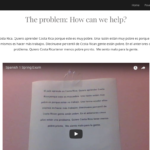
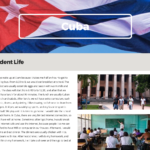
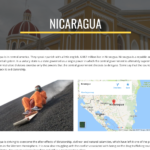
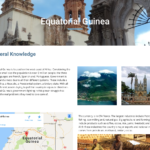
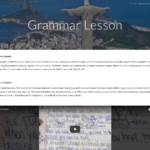
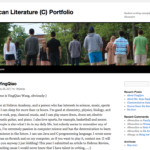
Using the new Google Sites, for their end of year exam Spanish I students created cultural websites based around a Spanish speaking country of their choice. The sites had to contain a page covering the basic information about their country, a specific topics pages highlighting one specific area about that country, a day in the life of page and a grammar lesson video page. And using the different tools and options inside Google Sites they had to customizes the design of each page and neatly layout their text, images and multimedia objects.

Screenshots illustrating the different page layouts and designs can be seen below:

Posted in Tech in the Classroom | Comments Off on Spanish I – Cultural Websites