
Google Docs Hints & Tips

Within Google Drive you can create a number of different online document types. Just click the red New button:

Screen_Shot_2015-09-24_at_13_01_23

Any document type you create can be edited and accessed from any browser and can be collaborated on by multiple people at the same time. This is especially useful for group projects and collaboration.

You can think of the blue Document as Microsoft Word, Presentation as PowerPoint and Spreadsheet as Excel, although they do not have all the functionality of the corresponding Office apps. Drawing is a simple art app similar in many ways to Paint on Windows and very useful for technical diagrams, design plans or even mind maps.

Once you have created one of these document types, to share it with other people simply click on the blue Share button in the top right hand corner. There are three levels of permission: editing, commenting or viewing. Once you share a document with someone they will get an email notifying them with a link and it will appear in the Shared with me section of their Google Drive.

One useful feature within all document types is the ability to download your document as a different file type to your computer. Click File: Download As to see these options:

Screen_Shot_2014-10-24_at_10_02_04_AM

This allows you to convert your Google Doc to a PDF or Word Document (or presentation to PowerPoint, etc.) if you wanted to upload it to myHebron or email it as an attachment without sharing it.

Another useful feature across all the document types is the ability to add comments at specific points in the document. Click the word or section where you would like to add the comment, click the Comments button in the top right and look for this icon in the toolbar Screen Shot 2014-10-24 at 10.05.43 AM. Click the blue comment button when you are done to add the comment and it will appear on the right hand side of the window:

Screen Shot 2014-10-24 at 10.12.03 AM

Anyone you share the document with will be able to see the comments and (if they have permission) add their own. This is very useful for corrections to a paper or department document or for grading.

In the Tools drop down menu there are additional features for all document types, including a word count and check spelling options. But the most useful is the Research Tool:

Screen_Shot_2014-10-24_at_10_14_15_AM

Click this to reveal a side panel on the right that lets you search these different sections of Google within the document (click on the icon next to search to reveal the different options):

Screen_Shot_2014-10-24_at_10_17_18_AM

And allows you to quickly add quick citations to any work you have used, including where you found specific images. Hover your mouse over any result from your search and you can either preview the site in another window, insert a link on to your document or add a footnoted citation automatically:

Screen Shot 2014-10-24 at 10.29.31 AM

If you want to use and cite an image simply drag it onto your document and again the footnote will create automatically for you:

Screen Shot 2014-10-24 at 10.20.45 AM

Although not a replacement for something like RefMe it can be useful for smaller projects and papers, especially if you want to record image locations or quickly build up lists of links used.

Posted in Professional Development | Comments Off on Google Docs Hints & Tips

Google Drive Hints & Tips

1. There are two sections to Google Drive – My Drive which is the files and folders you have created, and Shared with me which is everything that has been shared with you by others:

Screen_Shot_2015-09-24_at_13_05_41

If you delete a file from My Drive it will go into the trash. If you delete a file from Shared with me it deletes only your link to that file and not the original file which was made by someone else. As with your email inbox we recommend using folders (click New: Folder and drag files into them) to organize your My Drive, and remove any documents from Shared with me you no longer need.

If you want to add documents from Shared with me to your My Drive you can either right click on  the document and select Add to My Drive (this still only creates a link to it) or right-click and choose Make a copy to make a completely separate version.

2. Any file or folder within Google Drive can be shared. Just look for this button to share something: Screen Shot 2014-10-16 at 2.07.47 PM. You can easily share with any with the Hebron community or use your roster from myHebron to share with a class. Their are three levels of sharing to choose from depending on the situation: edit, comment or view.

You can also click on Get shareable link if you want to post a link to the document on myHebron or in an email:

 Screen_Shot_2015-09-24_at_13_14_12

The link will appear under the enter names box and be something like https://docs.google.com/a/hebronacademy.org/document/d/1j0bswvZPc7g1Df5uLA7PMNfwR4mWOrz4xjfhKY/edit?usp=sharing

3. Again as with Gmail, we recommend using stars to keep track of important files or files you need to refer back to regular. Just right-click on a document and select Add star and the file will show up in the starred list accessed on the left-hand side:

Screen_Shot_2015-09-24_at_13_05_41

4. To upload any file to your My Drive just hit the red New button and then click File upload.

4. Finally, as mentioned in the Storage in the Cloud post, another option is to use the Google Drive app on your MacBook Air. This is a similar tool to something like Dropbox that lets you sync files between your computer and the cloud. You can download the app from here and just follow the steps to install it. The end result being that you will now have a folder called Google Drive which will contain links to all the Google Docs you have created:

google_drive_finder_window_620px

You can now put any kind of file into that folder and it will sync up to Google’s servers and you will be able to access it anywhere.

Posted in Professional Development | Comments Off on Google Drive Hints & Tips

Uploading to Google Drive

Google Drive is included with your school email account and can be easily accessed on the web through the grid in the top right hand corner of your email:

Screen_Shot_2014-10-15_at_9_57_46_AM

Inside Google Drive you can use the New: File upload option to upload any file to your drive:

Additionally, starting last year with your new MacBook Airs another option we strongly recommend using is the Google Drive app, which was pre-installed for you.

This allows you access to all your Google Drive and Shared Drive files from the desktop and Finder links. Any file you drag into these folders is instantly uploaded. More information can be found here.

Posted in Professional Development | Comments Off on Uploading to Google Drive

Gmail Hints & Tips

A few quick tips from the second technology training session on Gmail:

1. The difference between delete Screen Shot 2014-10-06 at 10.57.14 AM and archive Screen Shot 2014-10-06 at 10.57.19 AM: delete moves the message to your trash and after 30 days will vanish forever; archive hides the message from your inbox but you can still search for it and it will appear in the All Mail view

2. Use labels in the same way you would use folders for files. The only difference is that messages can be attached to more than one label. Click More to access the label options:

Screen Shot 2014-10-06 at 10.49.51 AM

3. Create your labels and once a message has been dealt with use the move option (the folder icon at the top of the message) to get them out of your inbox. The icon that looks like a luggage label lets you assign more than one label to a message:

Screen Shot 2014-10-06 at 10.51.16 AM

4. Star really important messages that you want to have easy access to or want to refer back to:

Screen Shot 2014-10-06 at 10.52.03 AMThese starred messages appear in the Starred view or you can actually change the layout of your inbox so they always appear at the top in a separate section. Click the drop down arrow next to Inbox to get to these options:

Screen Shot 2014-10-06 at 11.07.44 AM

5. Using the search function within Gmail can sometimes give you too many results and what you are actually looking for can be hard to find. Use the advanced search to limit the results. Click the arrow to the right of the search box to see these options:

Screen Shot 2014-10-06 at 10.53.00 AM

Use these techniques to keep your inbox as empty as possible. Delete the messages you don’t need, archive the ones you have read but think you might need sometime in the future and use folders and stars to organize the rest.
Posted in Professional Development | Comments Off on Gmail Hints & Tips

Sending Large Attachments Using Drive

If you need to share a file that is larger than 25MB follow these steps:

1. Log in to your school email
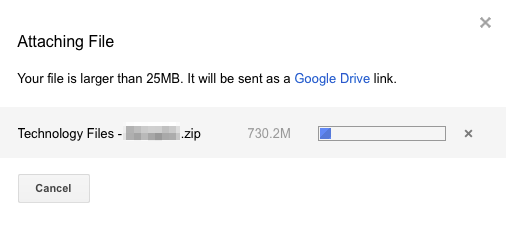
2. Compose an email in Gmail, click the attach paperclip button and choose the large file
3. You will see this message:

4. Wait until the file has been uploaded
7. Then click send to send your email as normal
8. And finally click share & send

Posted in Professional Development | Leave a comment

Mac OS X Quick Tips

Just a few points from today’s technology training which will hopefully make your MacBook Airs a bit easier to use:

1. When you logoff or shut down your MacBook make sure this button is un-ticked. This will stop all your apps from loading up again each time you turn your laptop back on.

logoff option

2. Make sure to save all your files in your Documents folder so that they are backed up to the cloud via CrashPlan. That means any files saved on the desktop won’t be backed up!

3. Use the Launchpad app in your dock (or press F4 on your keyboard) to see all the different apps installed on your MacBook.

4. Drag up and down on this line to resize your dock:

dock

5. Try out some of these options in your Finder window to show extra information at the bottom of the window:

finder

6. In Finder: Preferences change the New Finder windows show drop down option to Documents instead of All My Files:

finder docs

7. In System Preferences take a look at the Trackpad section to get an overview of all the different iPad-style gestures you can use to navigate around a lot faster. Each has a quick demo video to illustrate what the gesture is and does.

8. Whenever a save dialog box appears click this drop down arrow to get full access to all the different folder locations:

save

Posted in Professional Development | Comments Off on Mac OS X Quick Tips

Faculty MacBook Airs

macbook_air_yosemite-800x450Here is a quick overview of some of the different apps installed (or that can be installed) on the Faculty MacBook Airs:

Audacity – a quick way to record and edit audio
Comic Life – create comic book layouts with panels, speech bubbles and actions
Garageband – music creation software, also excellent for audio recording and editing
Google Drive – syncs files between the Mac and the cloud (all students were setup with this during orientation and it is recommended they store all their school files in the Google Drive folder)
Google Earth – lets you fly anywhere on Earth to view satellite imagery, maps, terrain and 3D buildings
iMovie – fully featured movie editing software with titles, transitions and effects
iWeb – drag and drop website design (this software is no longer supported by Apple but is still an excellent design tool)
Keynote – presentation software and an excellent alternative to PowerPoint
Microsoft Office – full desktop version which includes Word, PowerPoint and Excel
Mindnode – simple and fast mind-mapping and diagramming software
Numbers – spreadsheet and graphing app with better design options than Excel
Pages – excellent app for creating different document layouts, like posters and brochures
Photo Booth – quick app for taking pictures and video with the inbuilt webcam and microphone
Quicktime – inbuilt video player but can also be used for audio, movie and screen recordings (accessed from the file menu) as well as simple editing using the trim tool
Scratch – building block programming from MIT
Sketchup – excellent 3D building tool allowing the the creation of simple shapes to full building models

If you would like any more information or training on these apps, or have an idea for a specific project for your classes, please contact the tech office.

Posted in Tech in the Classroom | Comments Off on Faculty MacBook Airs

Introduction

Technology at Hebron Academy is a tool used to enhance teaching, learning, and institutional management. Hebron’s technology staff support faculty, administrators, and students in their efforts to intelligently and ethically incorporate technology into all aspects of their education and work.

On this blog you will find information on what’s happening in the classroom with regards to technology integration at Hebron Academy. The main purpose is to share tools and resources between the different departments and classes. Please click on the ‘Home’ link at the top of the page to get started with the most recent posts, or click on the individual categories on the right hand side to see posts related just to that area of the school.

Posted in Office Updates | Comments Off on Introduction