Conceptual Physics – 3D Car Race Day

For the final part of the Conceptual Physics project based around car design, students had to prep their 3D printed cars for the test ramp and were then given three chances to record their fastest speed down the ramp (recorded with a radar sensor) and longest distance travelled off the ramp. Any car that did not make it down the ramp was disqualified for that turn.

Students recorded the data for all groups in their notebooks, which will include additional points for style to be decided in the next class. Everything will then be put together in a written report, including reflections on their own design decisions during construction and testing.

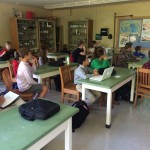
Here are a few shots from the two classes and some close-ups of the different designs the students created, including Lego additions and paint jobs:

And a YouTube playlist of all the different cars heading down the testing ramp is embedded below:

Posted in Tech in the Classroom | Comments Off on Conceptual Physics – 3D Car Race Day

Conceptual Physics – 3D Car Design

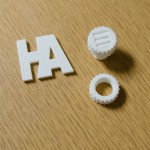
A project that Freshmen complete every year during their Conceptual Physics course is designing and creating Lego cars that are raced down a ramp and measured for speed and distance. This year, with the addition of the 3D printer, students will now either design their car completely using Tinkercad or use a combination of printed parts and Lego.

The project started with a introduction to 3D printing and how the process works, we then discussed the make-up of a car, how to translate their ideas and sketches (some drawn on the iPad using Notability’s drawing tools) into a software design and how to divide up the work between each group member. We also spent some time discussing wheel design and how wheels could be attached to the main body of their cars.

Students then created their cars in Tinkercad, based on their sketches and ideas. Some groups split the work into three with each student creating a part of the car, some worked together on one computer and others created three cars based on the same design and choose a winner to send to the printer.

A selection of photos of the students working in the Science computer lab, some car sketches, screenshots of the models in Tinkercad, and some of the finished printed models can be seen below:

Posted in Tech in the Classroom | Comments Off on Conceptual Physics – 3D Car Design

Creating a Presentation on the iPad

Here is a workflow we recommend for planning and creating a presentation using the iPad and a number of different apps provided for all faculty and staff:

  1. Use Notability to collect notes, PDFs, class handouts and related research together in one place.
  2. Use the mind-mapping app MindNode to brainstorm ideas, as well as plan out the structure of the presentation using outline view. See the Writing a Paper post for more screenshots on how to use this app.
  3. We recommend either Google Slides (for simple text-only writing) and Keynote (if layout is important, including the addition of multiple columns of text, diagrams and images, etc.) as the apps to actually use to create the presentation.
  4. Finally, to collect references and citations we recommend RefMe, in which you create a new project for each presentation, collect and format your references and then export them at the end to add to the finished presentation.

This video gives a nice overview of how to use the app (it’s recorded on the iPhone but the iPad app is very similar):

Other presentation apps that are available on the iPad include Prezi and Haiku Deck – both are great apps and provide alternative designs, interfaces and methods of navigation.

Posted in Professional Development | Comments Off on Creating a Presentation on the iPad

Writing a Paper on the iPad

Here is a workflow we recommend for planning and writing a paper using the iPad and a number of different apps provided for all faculty and staff:

  1. Use Notability to collect notes, PDFs, class handouts and related research together in one place.
  2. Use the mind-mapping app MindNode to brainstorm ideas, as well as plan out the structure of the paper using outline view. This collapses the bubble layout into a text outline which can then be exported and used to write the paper around.

Here is an example mind-map:

IMG_0205

You can then tap the outline button in the top right hand corner to see what the outline will look like:

IMG_0206

Next, you can tap the share button, choose Plain Text Outline as the Export Type, and tap Send to App… to copy the text outline to an editing app such as Pages:

IMG_0211

The end result will look something like this (but with more detail!), and the paper can then be written around the outline:

IMG_0212 (1)

You can find out more about using MindNode through the official user guide.

3. We recommend either Google Docs (for simple text-only writing) and Pages (if layout is important, including the addition of diagrams and images, etc.) as the apps to actually use to write the paper.

4. Finally, to collect references and citations we recommend RefMe, in which you create a new project for each paper, collect and format your references and then export them at the end to add to the finished paper.

This video gives a nice overview of how to use the app (it’s recorded on the iPhone but the iPad app is very similar):

N.B. Although we do not currently have an Office 365 subscriptions for faculty and students to make use of the Microsoft Office apps on the iPad it is still possible for students to export completed written work as a Word document. Take a look at the various options in this post

Posted in Professional Development | Comments Off on Writing a Paper on the iPad

Spanish 1 – Day of the Dead Multimedia Project

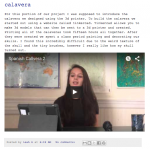
To learn about, and in celebration of, the Dia de los Muertos (Day of the Dead) festival, Ms. Hemmings’ Spanish 1 class recently completed a varied multimedia project based around the topic. This included the 3D Sugar Skulls project using the 3D printer, as well as audio, video and online reflective writing tasks.

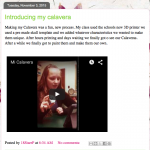
To package everything together the students created individual blogs using Blogger and embedded the different media files into their posts for easy viewing. Here are the links to their finished blogs:

http://yifeilangspanish.blogspot.com
http://19mortoncspanish.blogspot.com
http://17barneszspanish.blogspot.com
http://19petrocellijspanish.blogspot.com
http://18starrpspanish.blogspot.com
http://19prenticemspanish.blogspot.com
http://19kinasewichm.blogspot.com
http://19fultzpspanish.blogspot.com
http://18flattendspanish.blogspot.com
http://18vandorenrspanish.blogspot.com
http://19bonislspanish.blogspot.com
http://19younksspanish.blogspot.com
http://19irishlspanish.blogspot.com
http://18castriottasspanish.blogspot.com
http://19groverkspanish.blogspot.com
http://16zhangwspanish.blogspot.com

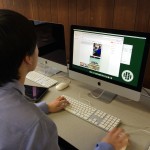
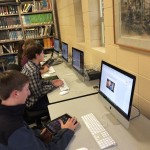
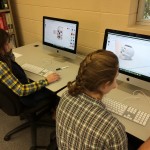
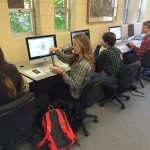
And a selection of blog screenshots and photographs of the students working in the iMac lab can be seen below:


Posted in Tech in the Classroom | Comments Off on Spanish 1 – Day of the Dead Multimedia Project

US History – Freedom Trail Presentation & Video Tours

On a recent trip to Boston, US History students spent the day walking along the Freedom Trail taking pictures and video with their iPads. Then during the train back from Boston, using research from class and information from the walk, students had to put together a collaborative presentation on the history of the trail and create video tours of what they experienced on the trip.

Here is the completed group presentation they put together using the Google Slides iPad app, including pictures from the day in Boston:

And here is an example of one of the video tours, again using pictures and video from the day, edited together using iMovie on the iPad:

In addition, before the students went on the Boston trip they actually did a practice project based around the historical points of the school’s campus, to learn the technical and research skills they would need for the real thing. Here is the group presentation they put together using photographs from the school’s archives and pictures taken using their iPads:

Posted in Tech in the Classroom | Comments Off on US History – Freedom Trail Presentation & Video Tours

Spanish 1 – Sugar Skulls in 3D

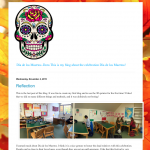
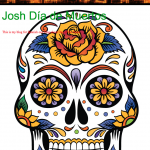
Spanish 1 students have just started a project based around the Dia de los Muertos (Day of the Dead) festival. One important aspect of this festival is creating and decorating calaveras (sugar skulls), which for this project we did using our new 3D printer.

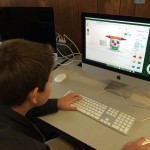
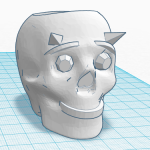
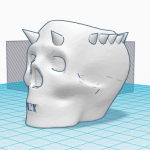
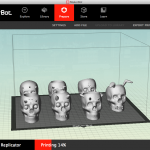
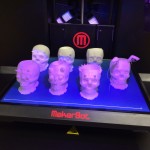
Using the Tinkercad 3D design software, students were given a simple skull template to work with and then added, resized and rotated different shapes and objects to decorate their skulls. Their final designs were then uploaded to the printer with seven different skull designs printed at one time. Students will next use sandpaper and acrylic paint to color their skulls.

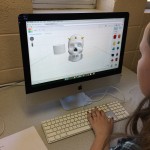
A selection of photographs of the students working in Tinkercad, and the finished skulls freshly created on the printer can be seen below:

Posted in Tech in the Classroom | Comments Off on Spanish 1 – Sugar Skulls in 3D

3D Printer Instructions & Booking Sheet

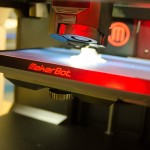
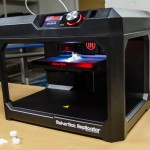
Now that the new 3D printer has been installed in the old Math Office we are ready to start using it for classroom projects. This aim of this post is to give you an overview of the process of creating and printing an object in 3D. Please contact the technology department if you would like to use the 3D printer for a specific project so that we can help you plan everything out and help setup your print jobs. 

Step 1

The first step is creating or downloading the 3D object that you or or students are going to be printing. To find pre-built models you can go to Makerbot’s Thingiverse site and either browse their collections or use the search tool. Once you have found the model you want to use, click the Download This Thing! button and then click on the .stl version.

If you would like to design your own 3D object you can use Tinkercad, a easy to use browser-based modeling tool. You will need to create a free account and we then recommend that you work your way through the in-built lessons which show you how to put shapes together to create a model. Note that you can also import .stl files from Thingiverse into Tinkercad to alter and build upon.

Once you have created your model in Tinkercad you can click Design: Download for 3D Printing to download your .stl file.

Please note that the maximum model size for our printer is 6 x 8 x 10 inches.

Step 2

Now that you have your .stl file you are able to print, but first you will need to book the printer via this Google Sheet. Just fill in all the details including the day you will be printing. Because 3D prints take so long to complete we only want to schedule one print per day.

Step 3

On the day you have booked the printer you need to make sure you have a copy of the .stl file you will be using. You can upload this file to Google Drive, email it to yourself or save it to a memory stick.

Next, on the MacBook next to the printer you can download the file to the desktop and load the MakerBot Desktop app from the dock. Click the Prepare tab, then click Add, choose your .stl file and then click Print:

Screen_Shot_2015-10-12_at_12_31_41

Note that you can add more then one .stl file to print multiple models, there just needs to be room for them all to fit on the build plate.

Once the file has been uploaded you will need to click again to confirm the print. The machine will then start heating up and printing your model. The display on the printer will let you know how long it is going to take to print.

Once the print is done you just need to peel your model off the blue paper, and make sure the area is completely clear of plastic for the next print job.

Posted in Professional Development | Comments Off on 3D Printer Instructions & Booking Sheet

Notability on the iPad

We are hoping that Notability becomes a key app for both students and teachers on their iPads to use for taking text and visual notes as well as storing, organizing and annotating class handouts, presentations, etc. We also hope that teachers will use this app in conjunction with Air Server, their MacBooks and classroom projectors to use as a mobile interactive whiteboard.

When you first open Notability you will see the following screen, with your notes on the right hand side and any subject folders you make on the left hand side:

IMG_0052

Tap the + icon in the top left to create new subject folders to organize and store your notes:

IMG_0054

Any notes you have already created can be dragged and dropped between subjects.

To create a new note tap the pen and paper icon in the top right hand corner. When you have a note open you can use two fingers to scroll and pinch to zoom in and out. The different tools can be seen across the top of the app including text entry, a pen for drawing, a highlighter and an eraser:

IMG_0055

Tap on a tool twice to see any additional options. You can also tap on the + icon to insert other objects like photos, web clips (screenshots of a webpage) and sticky notes:

IMG_0056

Once these have been added you can annotate over the top of them, you just need to tap somewhere else on the screen to deselect them. If you need to select and move one of these objects later on you need to use the text tool and just tap the object.

In addition to building up notes with these tools, Notability also offers powerful importing tools and can link to a number of cloud storage services. On the opening screen tap the import button and then tap Google Drive to link your school Google Drive account:

IMG_0057

You just need to login and tap Accept. You can now import all kinds of documents including PDFs, images and Microsoft Office files from Google Drive. Notability will turn them into notes which you can then view and annotate over the top of.

Once you have finished annotating you can also export the file back to Google Drive, just tap the export button and tap Google Drive again:

IMG_0058

One thing to note with exporting is that if you export the same file back to the same location in Google Drive it will overwrite the original. So if you want to save the originals and your students’ annotations you will need to create some kind of folder structure to save the separate files.

Posted in Professional Development | Comments Off on Notability on the iPad

AP Chemistry – Vernier Graphical Analysis & Bluetooth Sensors

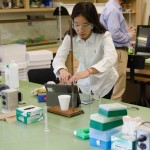
This past week in the science department at Hebron, AP Chemistry students utilized new data analysis technology to calculate the heat of fusion of ice. Using the Vernier Graphical Analysis app on their iPads linked to our new GoWireless sensors and temperature probes, the 10 AP scholars were able to collect temperature data over time to calculate the heat transferred from liquid water to ice. These students will be using a similar system this week to design the most effective hand warmers from multiple possibilities.

This new system will allow science students to essentially collect data on their iPads anywhere on campus using our growing suite of Vernier probes (we now have more than a dozen different types). These probes and wireless sensors will be utilized in all of Hebron’s science classes this year with Biology using the dissolved oxygen probe this week and Anatomy and Physiology using EKG and force sensors to measure muscle potential during grip and weight training activities. Students will then upload the data into Google sheets or Excel for further analysis, graphing, and lab reporting.

Mr. Maldonis, Science Department Chair

Posted in Tech in the Classroom | Comments Off on AP Chemistry – Vernier Graphical Analysis & Bluetooth Sensors