Freshmen Skills – Notability on the iPad

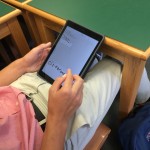
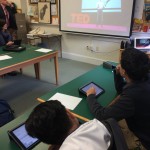
During the Freshmen Skills class this week students were introduced to note-taking on the iPad, with most of the time spent looking at the Notability app. The students were shown a TED talk on YouTube and for 5 minutes they had to take notes by typing into a Notability note, for 5 minutes they had to use the pen tools and for 5 minutes they had to use a physical pen and paper.

Their paper notes where imported into Notability using the iPad’s camera (and annotated and highlighted added on top). We then compared and contrasted these different ways of taking notes, as well as discussing where and when each approach could be used.

Next, we looked at some of the other objects and documents you can import into Notability, such as web clips for saving and annotating web pages and using the Open in.. shortcut to import PDFs from my Hebron. We also connected our Google Drive accounts within Notability to make it fast and easy to import saved documents.

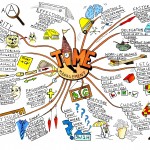
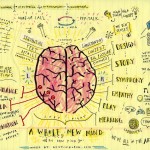
Finally, to wrap up the workshop, we watched through this video on visual note-taking to see another approach that could be used, taking advantage of all the tools that Notability offers:

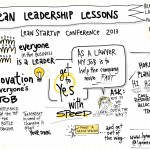
Here are a few examples of what can be created using these techniques:

Posted in Tech in the Classroom | Comments Off on Freshmen Skills – Notability on the iPad

Opening Day iMovie Trailers

iMovie iconTo kick-off both the start of school and our iPad 1:1 program, on opening day one of the student activities was a scavenger hunt, with various stations setup around campus. As well as figuring out the locations, students had to use the Camera and iMovie apps on their iPads to film their journey and turn it into a movie trailer for Hebron Academy. The final projects were then shared via Google Drive.

Below are a few screen grabs for the trailers that were produced:

And here is a YouTube playlist of the best four films created:

Posted in Tech in the Classroom | Comments Off on Opening Day iMovie Trailers

iOS 9: Split-screen Multitasking & Picture in Picture

ios_9_iconApple has recently released a major update for the iPad called iOS 9, which includes a number of important productivity improvements. We would like everyone on campus to upgrade to this version by going to Settings: General: Software Update and following the instructions. It will take around 20 minutes for the upgrade to take place. After upgrading you should go to the App Store and make sure all of your apps are updated as well.

The two big features of iOS 9 are:

1. Split-screen multitasking, which lets you swipe from the right of the screen to open up and use a second app:

ipad-ios9-slide-over

When this second app is open you can also swipe down from the top of the screen to choose another app to have open.

2. Picture in Picture, which lets you watch a video and use other apps at the same time. In this mode the movie is resized down into a small movable window:

IMG_0195

When watching a video you just need to tap this icon to enter this mode:

IMG_0194

This is great for watching videos and taking notes at the same time. At the moment this feature only works with videos played in Safari but other apps should be updated to support it soon.

To get an overview of both these features take a look at this screencast (you can ignore everything after 2mins 30seconds as our iPads don’t support this feature):

Posted in Professional Development | Comments Off on iOS 9: Split-screen Multitasking & Picture in Picture

Creating Microsoft Office Documents on the iPad

As mentioned in both faculty training and student orientation we are not subscribed to the Office 365 program so therefore have limited access to Word, PowerPoint and Excel on the iPads. These apps are available but only for viewing files.

However with our current Google Apps and Pages, Keynote and Numbers setup on the iPads it is still possible to create Microsoft Office document types – students just need to export their work.

To do this in the Google Docs app, tap on the three dots icon in the top right-hand corner of the document you want to convert:

IMG_0187

Then tap Share & Export:

IMG_0188And then choose the Save as Word option:

IMG_0189

This creates a copy of the original Google Doc file as a Word document which can then be shared or emailed as normal. This workflow is the same in Google Slides (to create PowerPoint files) and Google Sheets (for Excel).

If your students are working in Pages they can convert the file to a Word document by tapping the Share button and selecting Open in Another App:

IMG_0190Then choosing Word for the selection grid:

IMG_0191

And finally choosing Google Drive as the destination app:

IMG_0192

IMG_0193

This will create a new copy of the file in Google Drive as a Word document which can then be shared, etc. These steps work in Keynote and Numbers to create PowerPoint or Excel files also.

Posted in Professional Development | Comments Off on Creating Microsoft Office Documents on the iPad

Voicemail/Faxing Setup and Instructions

Voicemail

Everyone on campus has a voicemail extension. Your incoming phone number follows this format: 1 (207) 966-5*** where the asterisks are replaced by your three digit extension.

For faculty (and other staff with virtual extensions), in order to set up your voicemail and record your greetings and name you need to use a physical phone, this can be done from any phone on campus.

Follow these steps to access your voicemail box and the setup options (staff with their own physical phones can ignore step 1 and just press the Message button on their phone):

  1. Dial *98 and hit the Send button
  2. When prompted, enter your voicemail extension number
  3. Enter your voicemail password, by default it is set to 1234
  4. Press 0 for mailbox options
  5. Go through the menu and change the following:
    1. Option 1: Record Unavailable Message, this is your default voicemail greeting
    2. Option 3: Record Your Name, this is what is used in our voicemail directory listing
    3. Option 5: Change Your Password, please set it to something other than “1234”

You will always be able to check your messages from any phone on campus, and you will also be getting any voicemail recordings sent to your extension via your email.

Everyone on campus can also check your voicemail and send/receive faxes through the web interface at voicemail.hebronacademy.org which is only accessible from on campus.

To log in, click on the link above and select My Extension:

1

Use your phone extension and voicemail password to log in:

2

Initially you will be taken to your voicemail inbox. From here you can download voicemail, organize messages into different folders, and delete messages:

3

Click on the Follow Me button to set up call forwarding – useful if you don’t want to share your cell phone number but still want to receive school phones calls to it. You can enter multiple numbers to ring after your extension. Enter each number in the list as shown:

4

Faxing

On the same website used in the above section, you can click on Faxes to view any faxes sent to your extension and to send new faxes.

You should be able to accept faxes with your full school phone number, however this system is not 100% reliable and we recommend receiving important faxes to the following number:

Business Office (the fax will be emailed to BO staff) – 207 966 2304

To send a fax through the online system, enter the phone number in the destination and choose a PDF to upload from your computer. You can use one of the printers to scan a document to your email and then download to your desktop for this purpose.

5

Posted in Office Updates | Comments Off on Voicemail/Faxing Setup and Instructions

Literature & Composition – Annotated Presentations

Seniors in Elements of College-Level Literature and Composition are tasked with writing a project proposal and researching it using films, video games, books, or music albums. The proposal, once approved, contains what their topic is, what their materials will be, and an overarching research question they will consider as they delve into the topic.

The seniors were then filmed presenting on their topic. I took their films and uploaded them to YouTube where I used annotations to provide feedback on their performance. I’ve included a few examples with brief descriptions.

Andrew Kluge – The Trade of the Century

Andrew discussed the trade of Wayne Gretzky to the LA Kings from the Edmonton Oilers and how it changed the long term course of hockey in North America. It’s a great example of effective visuals that power his presentation and support his argument.

http://youtu.be/7hVgYW1oDNM

Marisa Mao – Heroism in Eastern and Western Cultures

Marisa had one of the most conceptually great ideas of all the presentations, though her organization could have been stronger. She has an issue during the video with her not being able to talk over the clip she shows, which sadly hampers a strong concept and unique idea.

http://youtu.be/KM3Xkoehrps

Justin Lee – Moon and Oblivion

Justin showed off his film critic chops by comparing two very different films with similar themes. It’s a little too summary heavy to be great, but his visuals and ideas are still quite good.

http://youtu.be/7gsdLMHORHk

These are just a few ranges of examples that highlight the potential of this project as well as areas I need to more effectively teach and model presentation and research skills. Hopefully this is a useful and fun way to look at video and feedback with the iPad and YouTube.

Mr. Paul, English Literature Teacher

Posted in Tech in the Classroom | Comments Off on Literature & Composition – Annotated Presentations

iBooks Author

iBooks Author is a free app for the Mac that let’s you (or your students as a classroom project using the iMacs in the library) create professional and interactive ebooks that can be read on the both the iPad and Mac using the iBooks app (or exported as an ePub or PDF for sharing through email or Google Drive).

iBooks Author is similar in design to something like Pages, and you construct your book from text, images and other resources – the big difference being the layout of the document and the interactive elements you can add. It’s basically a much more advanced version of the Book Creator for iPad.

When you first load iBooks Author you can select from various template designs for your book:

Screen Shot 2015-05-20 at 9.55.04 AM

And then edit the document by replacing the template content as well as using the various text, shape and formatting options in these toolbars:

Screen_Shot_2015-05-20_at_9_55_16_AM

With additional formatting and design options available within the inspector:

Screen_Shot_2015-05-20_at_9_55_34_AM

As you build up your content you can start to add new pages, chapters and sections to create the structure of your book (from which the books contents page will be automatically created):

Screen_Shot_2015-05-20_at_10_00_46_AM

Finally, as mentioned above a big feature of iBooks Author is the ability to insert interactive elements, including review quizzes, which are accessed from the Widgets drop-down:

Screen_Shot_2015-05-20_at_10_03_02_AM

If creating an ebook with, or for, your classes is something you are interested in, you can download iBooks Author using this link and it is installed on all the iMacs in the library. You can also view Apple’s help guides here and we recommend this quick start ebook and this more detailed publishing ebook from O’Reilly Media.

Posted in Professional Development | Comments Off on iBooks Author

Flipped Classroom Workflows

According to Wikipedia: “Flipped classroom is an instructional strategy and a type of blended learning that reverses the traditional educational arrangement by delivering instructional content, often online, outside of the classroom and moves activities, including those that may have traditionally been considered homework, into the classroom. In a flipped classroom model, students watch online lectures, collaborate in online discussions, or carry out research at home and engage in concepts in the classroom with the guidance of the instructor”.

We have helped a number of teachers setup workflows for recording flipped classroom videos and our recommendations to make this process as simple as possible are detailed below.

Recording Yourself

PhotoboothLOGOThe quickest and easiest way to create a flipped classroom video for your students to watch outside the classroom is to record yourself in-front of your whiteboard. Simply setup your MacBook or iPad to record, deliver your class or lecture, trim the start and end of your video and then upload and share this video through Google Drive. You can find further help on audio and video recording here, and iPad specific instructions here.

Blendspace

One tool we recommend to package together videos (either recorded by you or existing content from video sites like YouTube), documents, links and other resources into an online lesson is Blendspace. Each of the resources you choose for your online lesson can be embedded into a grid and the students then go through each resource in order. So you could add some content overview text first, then perhaps some technical drawings, then a video and finally some review questions.

Here is an example of what a student might see after you have created a lesson, with each box in the grid linking to a different resource:

Screen Shot 2015-05-20 at 9.30.32 AM

And here is a good overview of the service:

https://www.youtube.com/watch?v=aQ_Mg3lSoew

Using Explain Everything

Explain Everything is a multi-purpose app available to all faculty on their iPads and one feature is that the app can record your actions when creating any kind of project and then export those actions as a video (again to be shared through Google Drive). So you can create presentation slides, annotate PDFs and record your voice all within the same project and then turn that into a video. Further information on Explain Everything can be found here, with section 4 focusing more on creating flipped classroom recordings.

EDpuzzle

Another online tool we recommend is EDpuzzle, which lets you add interactivity to videos you have made or existing video content from sites like YouTube. You can import or upload a video and then use EDpuzzle’s editing features to crop, add text and audio notes as well as questions and quizzes at specific times within the video.

You can see an example of what can be created here and below is a good tutorial taking you through the different parts of EDpuzzle:

https://www.youtube.com/watch?v=8377YLHrdwU

Posted in Professional Development | Comments Off on Flipped Classroom Workflows

Grade 6/7 French – Radio Shows in GarageBand

Following up from this project during French Flex, grade 6/7 students worked with a partner to record themselves in GarageBand reading their storybooks. They then edited these recordings together into one track, added a brief welcome introduction, sounds effects and a jingle, and finally adjusted the volume levels, to create a finished radio show completely in French.

Their finished tracks are embedded below as a SoundCloud playlist:

Posted in Tech in the Classroom | Comments Off on Grade 6/7 French – Radio Shows in GarageBand

Grade 7 English – Storyboarding & Green Screen

Grade 7 English students have been studying a student version of The Odyssey, and their final project was to choose a story from the book and then film themselves acting out the story.

The first step in creating their re-telling of the classic tales was to storyboard their ideas into a workable series of scenes. To create these we used Storyboard That, an excellent online tool with lots of characters, designs and text options. The finished storyboards are embedded below:

Screen Shot 2015-05-05 at 2.56.49 PM

Screen Shot 2015-05-05 at 2.56.59 PM

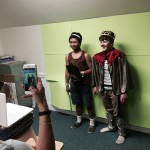
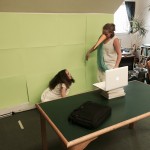
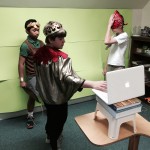
The students then setup and filmed all of their scenes in front of neon green paper, which could then be replaced by any image in iMovie later on. Here are a few pictures of the students filming their scenes:

The final step was to select the background images they wanted to use for each scene, import these into iMovie and combine them with the clips they had already recorded. They also needed to add titles and credits. The completed movies are embedded below:

Posted in Tech in the Classroom | Comments Off on Grade 7 English – Storyboarding & Green Screen